Step-by-step triage

Follow these ten steps for every reported email. Most reports take 10 to 20 minutes. Your goal is to answer three questions: Is it malicious? Who else got it? Did anyone act on it?

Before you start

Safety warning

Never click links, open attachments, or reply to a reported email on your normal work computer. Never forward a suspicious email to coworkers. Use only approved analysis tools.

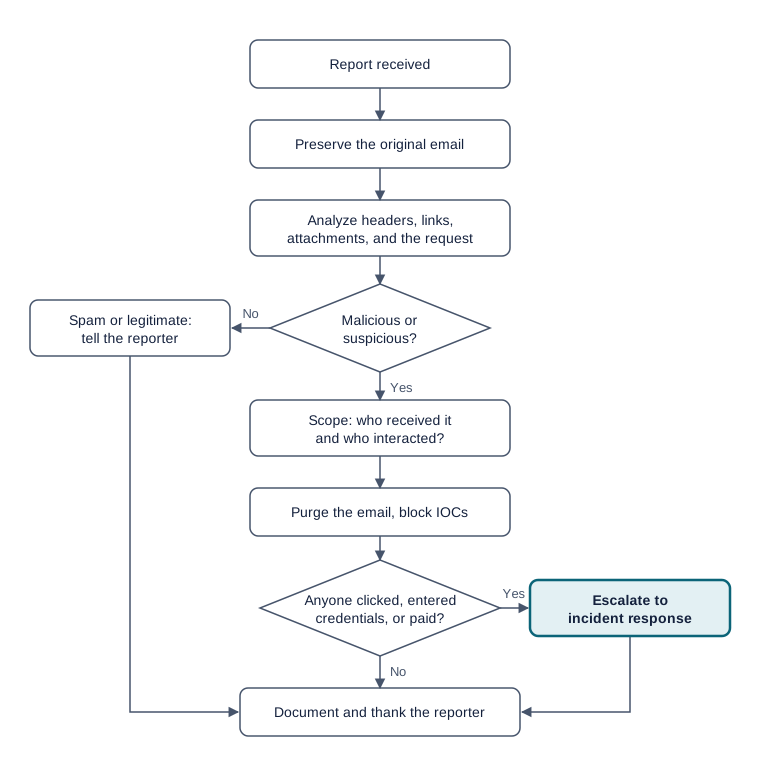
Phishing triage flowchart. The full sequence is written out below the image.
The triage flow at a glance. Every malicious email gets contained; it goes to incident response when someone clicked, entered credentials, or paid.
Read the flowchart as text
  1. Report received.
  2. Preserve the original email.
  3. Analyze headers, links, attachments, and the request.
  4. Decide: is it malicious or suspicious? If no, tell the reporter, then go to the last step.
  5. If yes, scope who received it and who interacted with it.
  6. Purge the email and block the IOCs.
  7. Decide: did anyone click, enter credentials, or pay? If yes, escalate to incident response.
  8. Document the case and thank the reporter.

Phase 1: Preserve and observe

  1. Acknowledge the report and open a ticket.

    Record the reporter, the time reported, and the subject line.

  2. Get the original email, not a screenshot or a forward.

    Download it as an .eml or .msg file, or pull it from your email security console. Forwarding strips the headers you need.

  3. Do a quick visual review.

    Write down:

    • the display name and the actual sender address;
    • the Reply-To address, if it differs from the sender;
    • what the email asks the reader to do (click, open, call, pay, reply);
    • pressure cues such as urgency, threats, secrecy, or rewards.

Phase 2: Analyze

  1. Check the headers.

    Find the Return-Path, the Received lines, and the Authentication-Results line. Note whether SPF, DKIM, and DMARC passed or failed, and for which domain. Look for look-alike domains such as rnicrosoft[.]com or company-payroll[.]co. Check the sender domain's registration date with a WHOIS lookup; a domain created a few days ago is a red flag.

  2. Examine every link without clicking.

    Copy each URL from the email source, not the visible text, and defang it in your notes. Check its reputation in a URL scanner, and view the page only in a sandbox. Look for login pages that imitate your company or a well-known service.

  3. Examine attachments without opening them.

    Calculate the file hash (SHA-256) and search for the hash first. Detonate the file in a sandbox only if your policy allows.

    Privacy warning

    Uploading a file to a public scanner can share it with other users of that service. Search by hash first, and never upload a file that may contain company or personal data unless your policy allows it.

  4. Judge the request itself.

    Business email compromise often has no link or attachment. Treat these requests as high risk: changes to payment or bank details, gift card purchases, urgent wire transfers, and requests for W-2s or employee data. Verify through a known phone number or contact, never one taken from the email.

Phase 3: Scope, decide, and act

  1. Find out who else received it and who interacted.

    Search mail logs for the same sender, subject, or URL. Search web-proxy or DNS logs for visits to the malicious domain.

  2. Classify and respond.

    Use the table to choose a classification and action.

Step 9: classifications and actions
ClassificationWhat it meansYour action
MaliciousEvidence of credential theft, malware, or fraudRemove the email from all inboxes and block the IOCs, following policy
SuspiciousRed flags, but no conclusive evidenceQuarantine it, then escalate for a second opinion
SpamUnwanted marketing, not harmfulBlock the sender if appropriate, then close
LegitimateA real business emailTell the reporter it is safe, then close
SimulationYour organization's own phishing testClose per the testing program's process
Escalate immediately if

anyone entered credentials, opened an attachment, or sent money, or if the email targeted executives or finance staff. Credential exposure usually requires a password reset and ending that user's active sessions.

  1. Document and close.

    Record your findings, the IOCs (defanged), the actions taken, and the time spent. Reply to the reporter and thank them, even if the email was harmless.

Ticket note template

Copy this into your ticket and fill in each line.

Summary: [Malicious / Suspicious / Spam / Legitimate / Simulation]
Reporter / time:
Sender (display name | address | Reply-To):
Authentication: SPF __ | DKIM __ | DMARC __  (for domain: ______)
IOCs (defanged):
Recipients affected: __ | Interactions (clicks / credentials): __
Actions taken:
Escalated to / time: